
Digital Planning – The Ultimate Guide with a FREE Online Course (2026)!
⋆˙⟡♡︎ This post may contain affiliate links. Please see my disclosure policy for details. Thanks for your support ⋆˙⟡♡︎
If you didn’t know, digital planning has recently become one of the top ways to organise in 2026.
Why? Because it’s light, easy, saves time, it’s eco-friendly and above all – it’s fun!
But, if you’re new to the digital planning game and you’ve never even laid eyes on a digital planner, it can be hard to understand what digital planning is and how it works.
So, in this post, I’m going to break down digital planning for you. This is going to be the perfect guide for beginners!
Making a transition to paperless planning can seem overwhelming at first but this amazing guide should tell you everything you need to know before you take the plunge.
If you prefer, I have a FREE online digital planning course that you can sign up for with some video tutorials and FREEBIES like digital stickers. Just click here.
Here is the ultimate guide to digital planning!

But wait, before we start this guide on digital planning for beginners…
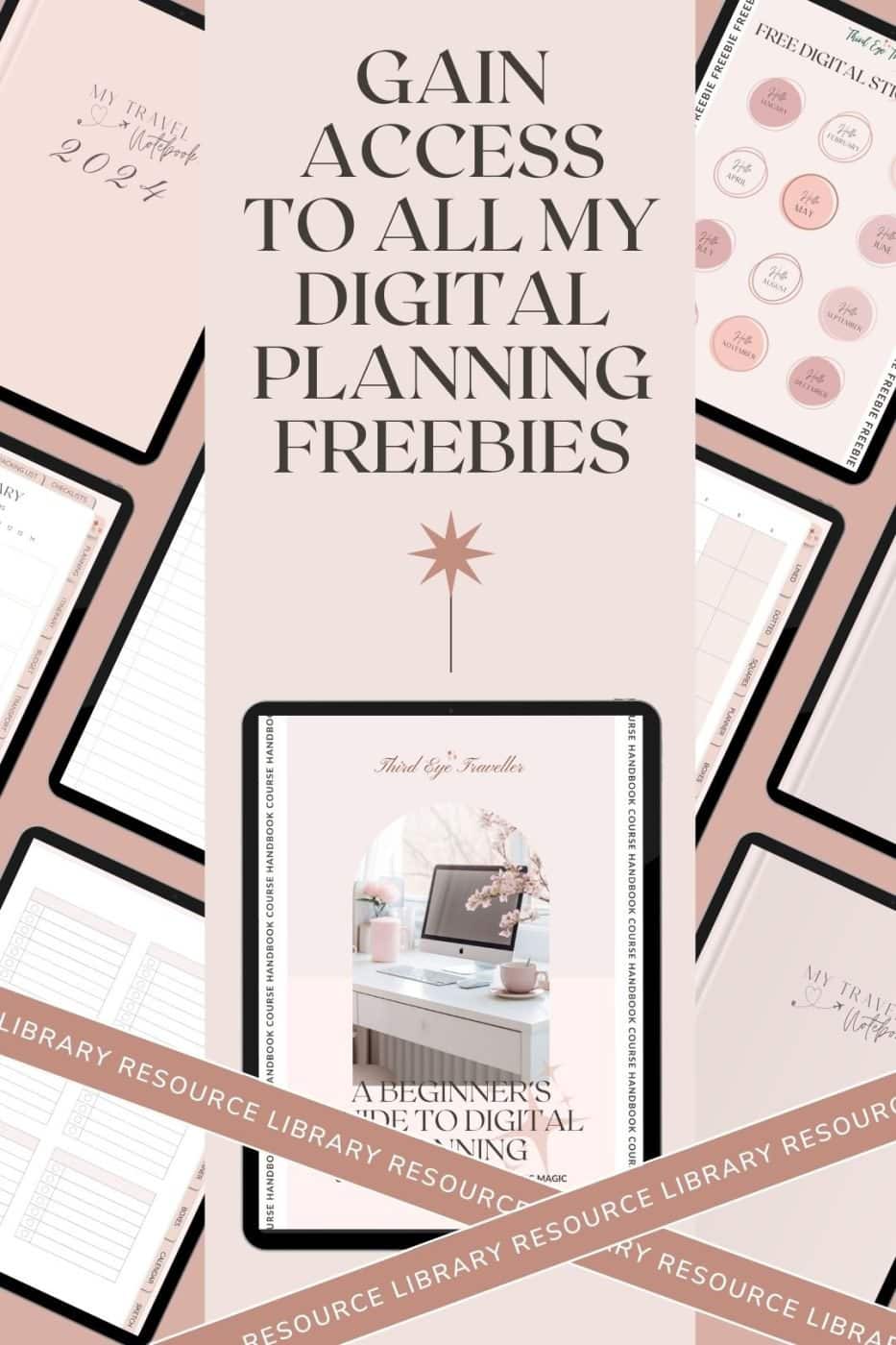
Want to download some awesome digital planning freebies?!
Sign up to my mailing list below to get access to my ever-growing resource library.
Once you’ve signed up you’ll get a password to access the library that has lots of digital planner freebies like stickers, sticker books, covers and more!
Get digital planning freebies & 10% off our shop
When you join our newsletter
Or, get a FREE digital planning course
Are digital planners right for you? Why not join my free workshop, Digital Planning Magic?
Take your knowledge of Digital Planning from NO to PRO with my quick and free online course
This course also includes video tutorials on how to use digital stickers and a free digital sticker pack.
Just click the button below and sign up to enrol for FREE!

What is Digital Planning?
Okay, so let’s start this guide at the very beginning. I bet your very first question is ‘What the heck is digital planning?’.
Well, digital planning is where you’re organising your day, week, month or year using a digital device. Whether that be your Laptop, PC, Phone or Tablet.
Most commonly, digital planning is performed with an iPad using a digital planning app like Goodnotes or Noteshelf.
But, instead of transferring your paper planner over to your device by taking pictures or scanning it.
You’re using a digital planner in your note-taking app instead!
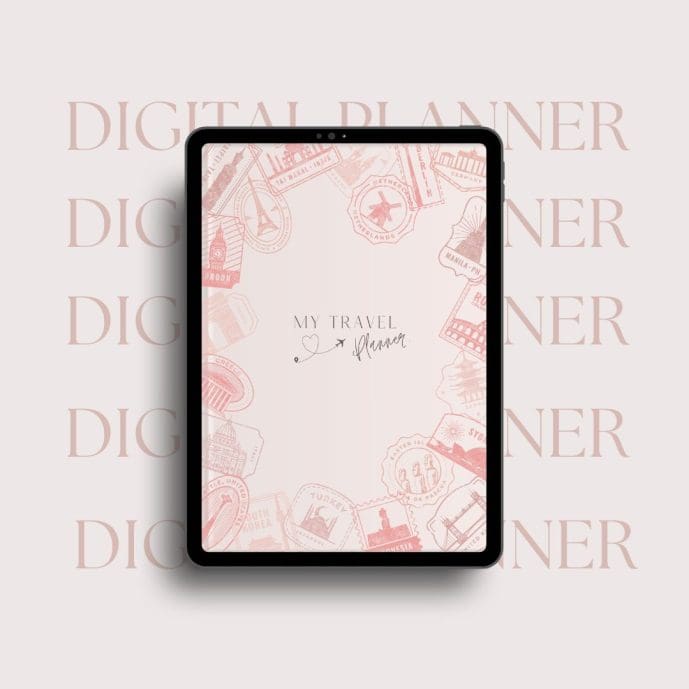
Okay, so what is a digital planner exactly?
Digital planners are PDF documents that you can transfer and use in a note-taking or PDF editor app.
The app allows you to write on the document using a stylus pen which creates a pen stroke. So, you’re writing on the document like you would write on paper.
However, with a digital planner, you’re doing it digitally on your device. Hence, the term digital planning.
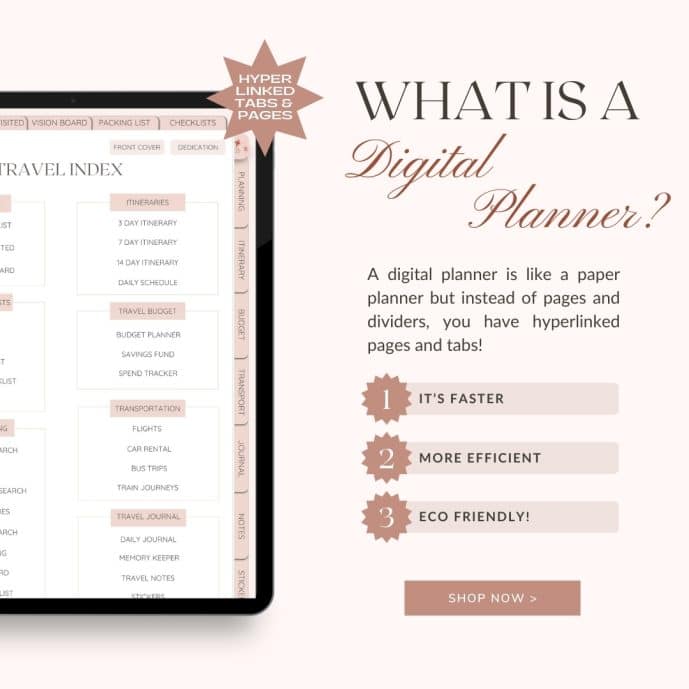
Digital planners, just like paper planners, traditionally have a series of tabs that have been created in the document.
These tabs are hyperlinked, so you get the illusion that you’re ‘flipping’ through the pages like you would in a traditional paper planner with tabs.
But, as you’re simply clicking on the hyperlinks in the document, this saves SO much time and it makes it a lot easier to find what you’re looking for.
There are also plenty more benefits to digital planning, like being able to erase your font, move text from page to page, duplicate pages, change colours of your ink seamlessly and you can even use digital stickers! (More on that later).

What does a Digital Planner do and how do digital planners work?
If you have ever bought or used a paper planner, you’ll know that a paper planner already has all of its pages included.
You’ll find that it’s bound and its pages are divided by page dividers and you can usually flip through to that section by using the tabs on the side.
This then allows you to find what you’re looking for. You can also move any one of those organiser pages by opening your binder rings and moving the page to anywhere in your organiser manually.
A digital planner is exactly like that! But, instead of moving things around with your hands, you’re doing it within the app.
You’ll be able to click on the hyperlinked tabs to move around your digital planner.
Also, you can easily move pages and duplicate them too. So, you’ll never run out of paper, and you don’t have to waste any either.
The app will then allow you to turn a ‘pen’ on where you can write with your stylus pen in the app.
Although it does take a bit of getting used to, you’ll eventually love digital planning so much that paper planning seems clunky – or it did to me anyway.
I could find everything so quickly using a digital planner and I didn’t have to worry about my writing. I could always erase it if it went wrong.
What types of digital planners are there?
There are digital planners for just about anything!
You get digital planners for your lifestyle, fitness, blogs, social media, DIY, projects and even camper van renovations!
There is an endless choice when it comes to digital planners and it continues to grow with more and more people converting to paperless planning.
Of course, I’m a travel blogger and so I created a chic range of digital travel planners to help you organise your trips:
Shop My Digital Planners
Did you know that I have a range of chic digital travel planners in my online shop? Check them out below:

The Ultimate Digital Travel Planner
Eliminate the stress of planning your next adventure
$4.99

The Magical Memories Keeper
A chic travel journal to capture your precious travel memories
$3 Introductory offer!

Remember: if you sign up for my digital planning freebies in my resource library, you get 10% off my digital travel planners!
Why use a digital planner?
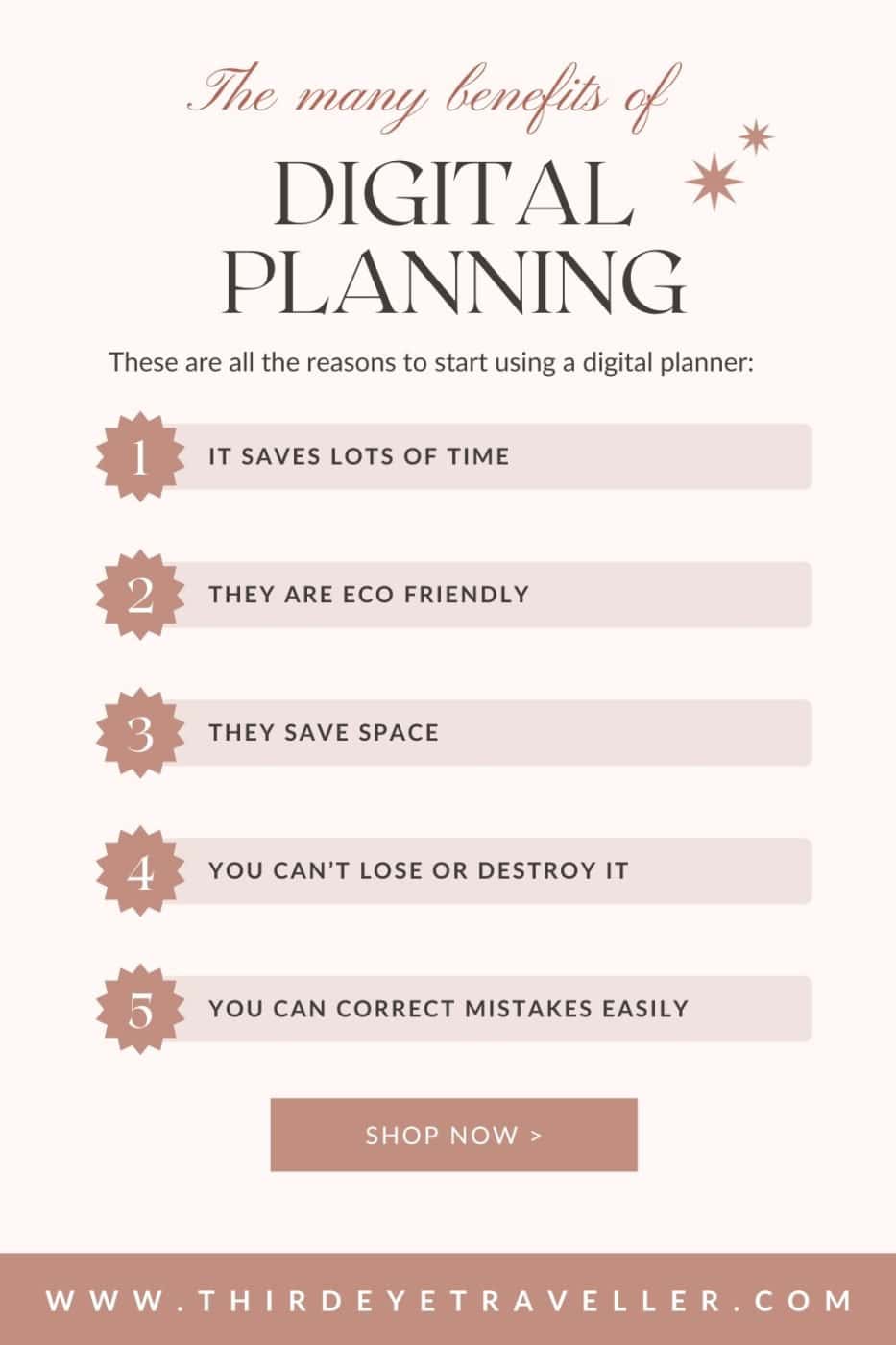
There are countless benefits to using digital planners. Here are a few of the top digital planning benefits;
- It saves time – clicking on hyperlinks throughout your planner is so easy! It means you can find what you’re looking for in no time!
- They are eco-friendly – I used to feel super guilty about buying so many planners and wasting so much paper I didn’t use. But, that doesn’t happen with digital planners. You can use them again and again and again as they are recyclable.
- They save space – I’m a travel blogger by trade and so I always struggle to carry paper planners in my luggage! I love having them all on my tablet or phone. It’s lightweight.
- You won’t lose or destroy it – unless your device gets set back to factory settings or corrupted, you won’t lose your planner! Plus, there’s no way you’ll get water on it.
- You can make writing mistakes – I have terrible handwriting and I used to get anxious about ruining a new planner with horrific writing that I’d have to strike out. I love the fact with digital planning I can erase my mistakes
What you need to start digital planning today
So, now we’ve covered what digital planning is and some of the benefits of paperless organisation.
Let’s cover what you need to start digital planning TODAY!
Digital Planning Essentials
1. You need an iPad or Tablet
Digital planning can be done on pretty much any device. But, I would say that the easiest way to start digital planning would be on an iPad or Tablet.
The reason is the fact that these devices are usually compatible with a stylus pen which allows you to write on your planner like you would a paper one with a pen.
This then gives you the feeling that you’re organising with a paper planner and you can barely tell the difference between the two!
You can start digitally planning on pretty much any tablet device. But, I would recommend the iPad Air or the iPad Pro.
BUY THE RIGHT IPAD
2. You need a stylus pen
This is a super important part of digital planning! Why? A few reasons…
Firstly, you’ll need to be able to click on the hyperlinks within your planner.
Most of the hyperlinks have small touch-points so you need something that is precise enough to allow you to click on the links easily.
Secondly, you’ll definitely want to be able to write on your planner even if it’s simply to underline text using the highlighter pen!
If you’re not confident with writing on a tablet, you can type on your digital planner using the ‘text’ function within a note-taking app.
Plus, you can use a keyboard with your digital planner too! You can even make your own fonts to use within your planner which is pretty cool.
I would personally recommend the Apple Pencil 2nd Generation if you’re using an iPad. It has the look and feel of a chunky crayon pencil!
3. Download a note-taking app
Although you could edit your PDF within the Apple or Android PDF reader/editor functions, it’s far easier to download a note-taking app to use your digital planner in.
These apps have so many features, it’s what makes digital planning so fun!
In the apps, you can write on your planner using their pen options. You can choose a pen type, increase the thickness and change the ink colour at the touch of a button.
You can also move your handwritten notes around the pages, change the colour AFTER you’ve written it and change the size – it’s incredible.
Not to mention there are plenty of other features like the typing function, shapes, adding images and more!
Note-taking/PDF editor apps take digital planning to a whole new level.
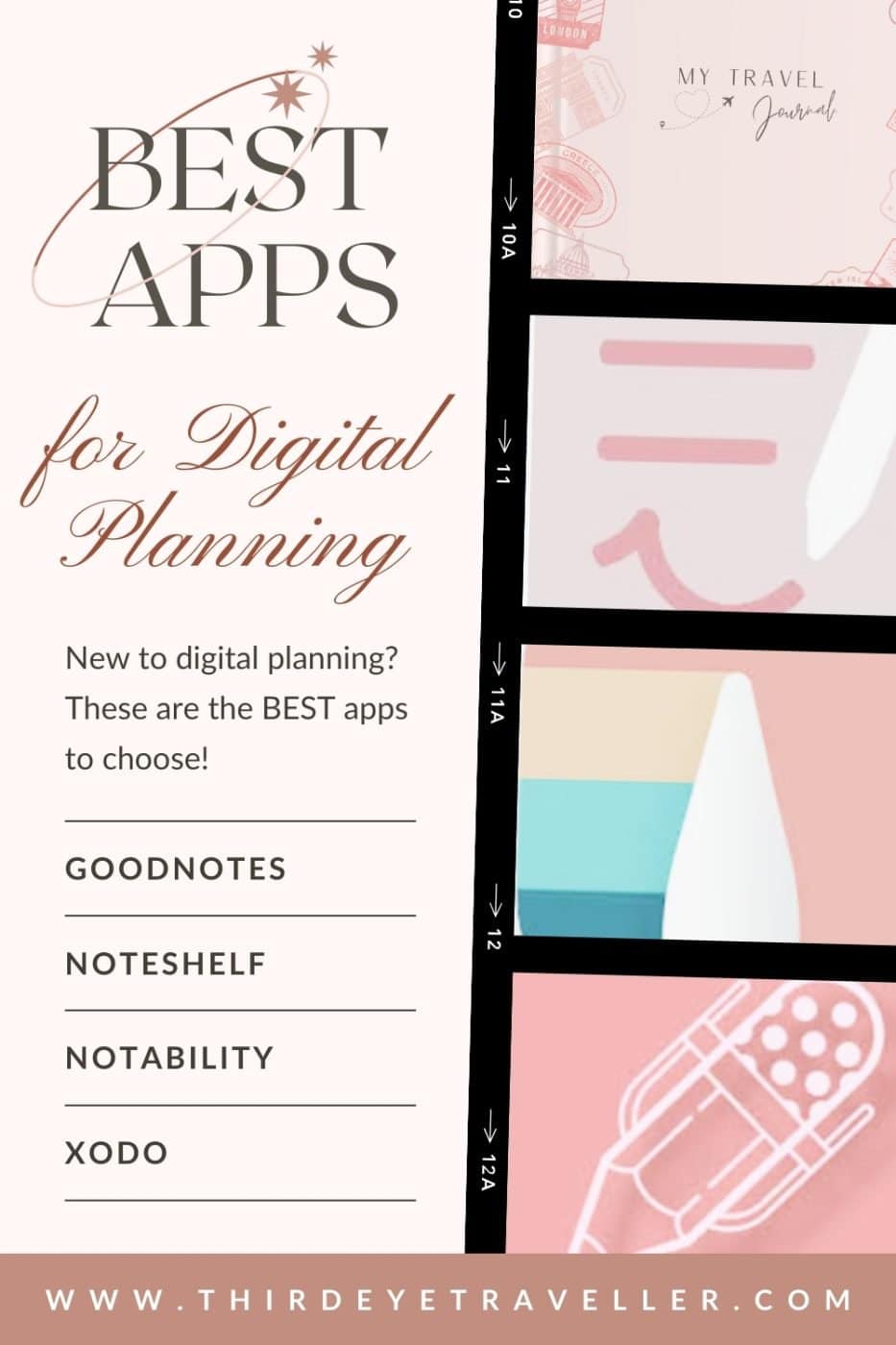
Best digital planning apps for iPad:
- Goodnotes
- Noteshelf
- Notability
Best digital planning apps for Android:
- Xodo
- Noteshelf
- Metamoji
4. Buy a Digital Planner
So, the most fun part of digital planning and equally the most stressful is to find the right planner for you and your needs.
You’ll definitely want to find one that suits you and includes templates for everything you need to organise.
So, I would do some research first to find your perfect planner.
Here at Third Eye Traveller, we have plenty of chic, minimalist and practical digital planners that are free of clutter so you can organise with a clear head!
All of our planners have been professionally made, light-weight (under 3MB) but are extremely high quality with 300dpi.
There are no lag in our planners and all of them come with some amazing bonuses like free digital stickers and front covers to customise!
Shop My Digital Travel Planners
Did you know that I have a range of chic digital travel planners in my online shop? Check them out below:
The Ultimate Digital Travel Planner
Eliminate the stress of planning your next adventure
$4.99
The Magical Memories Keeper
A chic travel journal to capture your precious travel memories
$3 Introductory offer!
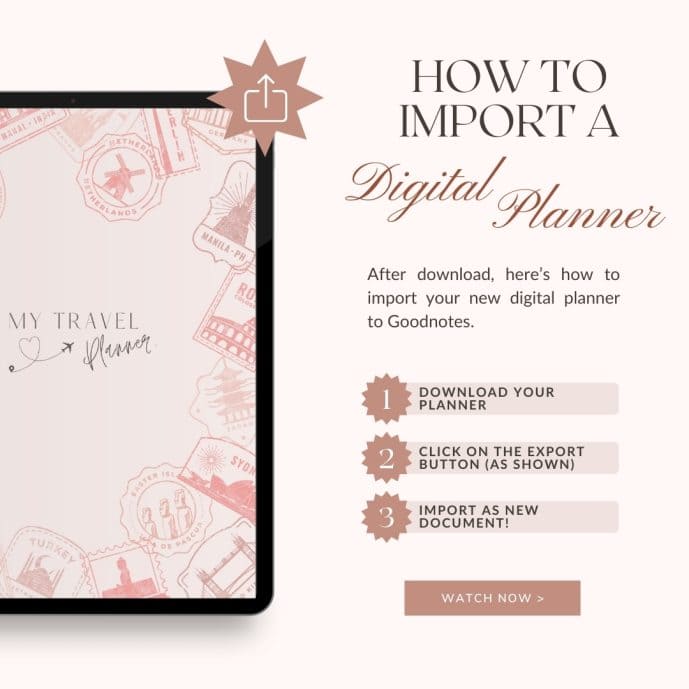
How to transfer a Digital Planner to Goodnotes
So, once you have your digital planner downloaded from Etsy and ready to go – what now?!
Well, firstly you need to make sure that you’ve transferred your digital planner PDF to your tablet.
Then, you’ll want to share your digital planner using the ‘share’ icon in the top right of your PDF preview.
Once, you’ve done that – select your note-taking app, like Goodnotes. Then, select ‘Import as New Document’.
This should have imported your digital planner to your note-taking app and then opened it up so that you can start using your digital planner!
How to use a digital planner in Goodnotes
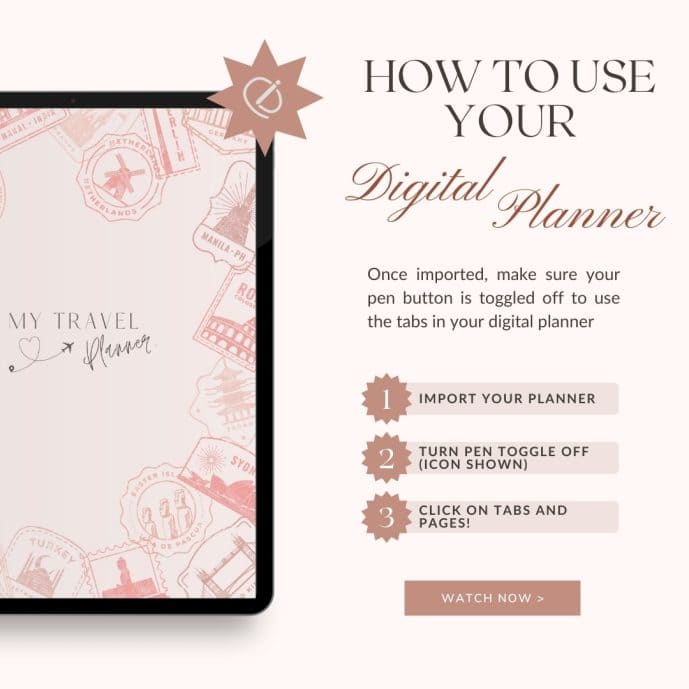
Once you’ve done that, the first thing I would recommend you do is click through your hyperlinks to get used to using a digital planner.
In Goodnotes, make sure that the pen icon is toggled off (you should see a pen icon with a strike-through line).
Then, you can start tapping on the hyperlinked tabs with your stylus pen to flip through your pages.
With Third Eye Traveller digital planners, all the pages include hyperlinks.
That means you can flip through to your travel pages by tapping on the text!
It’s really easy to do and you can start exploring your planner this way.
How to write on a digital planner
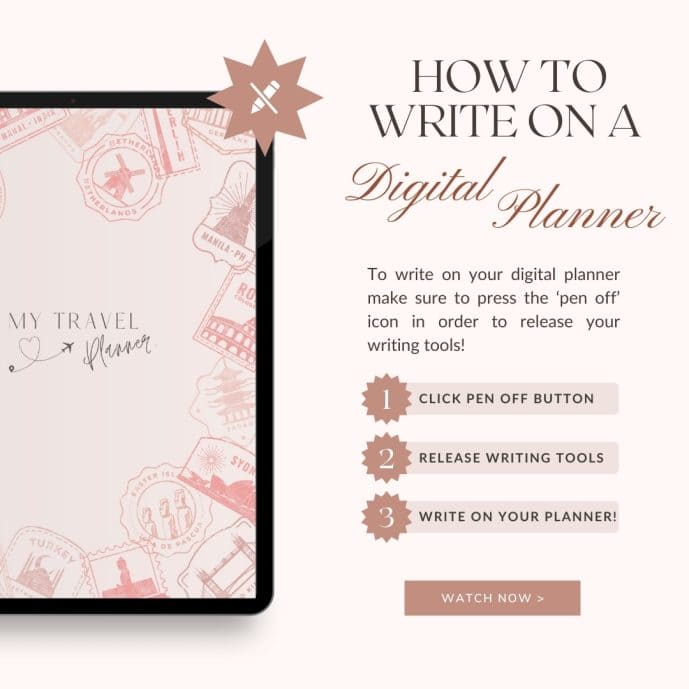
When you’re ready to start organising and using your digital planner, make sure that the pen is toggled off so you can flip to the page you want to write on.
Then, click on the pen icon again to start being able to write on the page.
Important: you will not be able to flip through the pages when the pen icon is set to ON – to flip, make sure it’s switched OFF again.
From here, you can start writing on your planner page. There are two pen icons that are the most important in Goodnotes.
The traditional pen – if you click on this you can start writing like you would with a traditional pen. Use the options to choose a pen type, thickness and your ink colour.
If you want to move your text around your page. Simply click on the ‘lasso’ tool and draw a circle around the text you want to move.
Then you can move it anywhere you want. Tap on the text and you can copy, cut, take a screenshot, resize it and change your ink colour!
The highlighter pen – you can also colour in things and underline notes by using the highlighter pen. This also can be changed to suit you!
Also, no need to collect highlighters in all the colours of the rainbow, you get to choose a colour from the hex codes provided.
How to add images to your digital planner
Suppose you wanted to start inserting images into your digital planner eg. For your vision board. This is super easy to do in Goodnotes.
All you need to do is click on the ‘image’ icon within the menu bar in the Goodnotes app. This will then show you a list of your most recent images to insert into your planner page.
Alternatively, click anywhere on your digital planner page and then select ‘insert from…’.
You can then search through all of your image library and even files!
You can even take a photo to add to your planner in real time by selecting the camera icon.

How to duplicate/copy pages in Goodnotes
Did you know that you can easily duplicate or copy pages in your Goodnotes app?
This means that your digital planner essentially has unlimited pages for you.
You’ll never run out and, if your planner is undated you can use it over and over again!
To copy and paste pages in Goodnotes, firstly you need to head to the page you’d like to copy.
Then, head to the three dots in the upper right-hand corner of your Goodnotes app.
From the menu, select ‘Copy Page’.
Then, head to one of your divider tabs eg. Personal or Notes
Once you have clicked on the divider tab, click on the ‘Add Page’ icon (It will be a paper symbol with a plus button in the middle).
Then, click on ‘Paste Page’ – Make sure that the ‘After’ button is toggled at the top of the menu.
Success – you have now inserted a page into your divider tab!
From here, you can easily duplicate the page by clicking on the ‘Add Page’ Icon again and then selecting ‘current template’.
You can repeat this in your digital notebook with whatever page templates you like!

A warning about deleting pages
Just remember that notebook templates taken from outside of the notebook will not have the hyperlinked tabs attached so you may break your links…
You can also break links by removing pages! So, make sure to save a copy somewhere in case this happens.
Digital Planning extras you may love
So, as well as the basic methods of digital planning, there are some extra bonuses that you may love when you’re using a digital planner.
These are digital stickers and the option to change your digital planner front cover too!
With both of these options, you have unlimited customisation options to make your digital planner completely unique.
What are Digital Stickers?
If you haven’t heard of digital stickers yet, you’ll definitely want to if you want to start digital planning!
It’s easily one of the most fun parts of paperless organisation because you get to customise your planner.
So, let’s get you clued up on what digital stickers are.
A digital sticker is a PNG file which is a high-quality image file type with a transparent background.
You can import your stickers individually to decorate your digital planner!
Another option is to use pre-cropped stickers in Goodnotes.
Pre-cropped stickers mean that all the PNG stickers have been imported into a Goodnotes file for you.
So, instead of having to import them one by one, they are all ready for you to use.
If you’re interested in digital stickers and how to use them. See below:

Related Post: How to use Digital Stickers + FREE Digital Sticker Pack

What are Digital Notebook Front Covers?
Unlike a paper planner where your notebook cover is fixed, with digital planners, everything is customisable – even the front cover!
So, you can easily switch your front covers to something you like better. Whether that’s to match your aesthetic or your favourite colour.
It’s a great thing to have, especially if you’re someone who likes to get seasonal.
You could easily create festive front covers or something for Halloween.
Digital Notebook Covers can be found on Etsy for a small price. Then, you can easily switch your front covers in the Goodnotes App.
Or, you can even make your own with apps like Canva
Interested to know more about digital planner front covers? See below:
Related Post: How to change covers in Goodnotes!

Sign up to try out digital planning today with my Digital Planner freebies!
Before you invest in any kind of digital planner, I would always recommend that you sample one first.
That’s why I created a bunch of digital planner freebies for you that you can access for FREE in my resource library.
This is a great way to experiment with digital planning and see if our digital planners work in your note-taking app!

Get a free digital notebook & 10% off our shop
When you join our newsletter
So, that’s the Beginner’s Guide to Digital Planning
I hope you enjoyed this guide and it helped you start your digital travel planning journey.
If you need more help with digital planning, why not join my free online course?
Join my free workshop: Digital Planning Magic!
Are digital planners right for you?
Take your knowledge of Digital Planning from NO to PRO with my quick and free online course.
This course also contains video tutorials on how to use digital stickers and another free digital sticker pack.
Just click the button below and sign up to enrol for FREE!
Shop My Digital Planners
Did you know that I have a range of chic digital travel planners in my online shop? Check them out below:
The Ultimate Digital Travel Planner
Eliminate the stress of planning your next adventure
$4.99
The Magical Memories Keeper
A chic travel journal to capture your precious travel memories
$3 Introductory offer!
Remember: if you sign up for any of my digital planning freebies, you get 10% off my digital travel planners
Save the ultimate guide to digital planning for later!


